How to add a glasses virtual try-on to your website
Step by step to add a live glasses virtual try-on to the online store you already have (Shopify, WooCommerce and others) without touching checkout.
Key takeaways
- You can add a live glasses try-on to the online store you already have, without switching platforms.
- You paste a code snippet once and every frame gets a Try on now button.
- Cart, checkout and payment stay the same.
- Try-ons are unlimited, with no cost per try-on.
Why an online glasses store needs a try-on
In a physical store, the customer puts the frame on and looks in the mirror. In an online store, they only see the product photo and wonder: "will it suit me?". Many people leave the page without buying because of that.
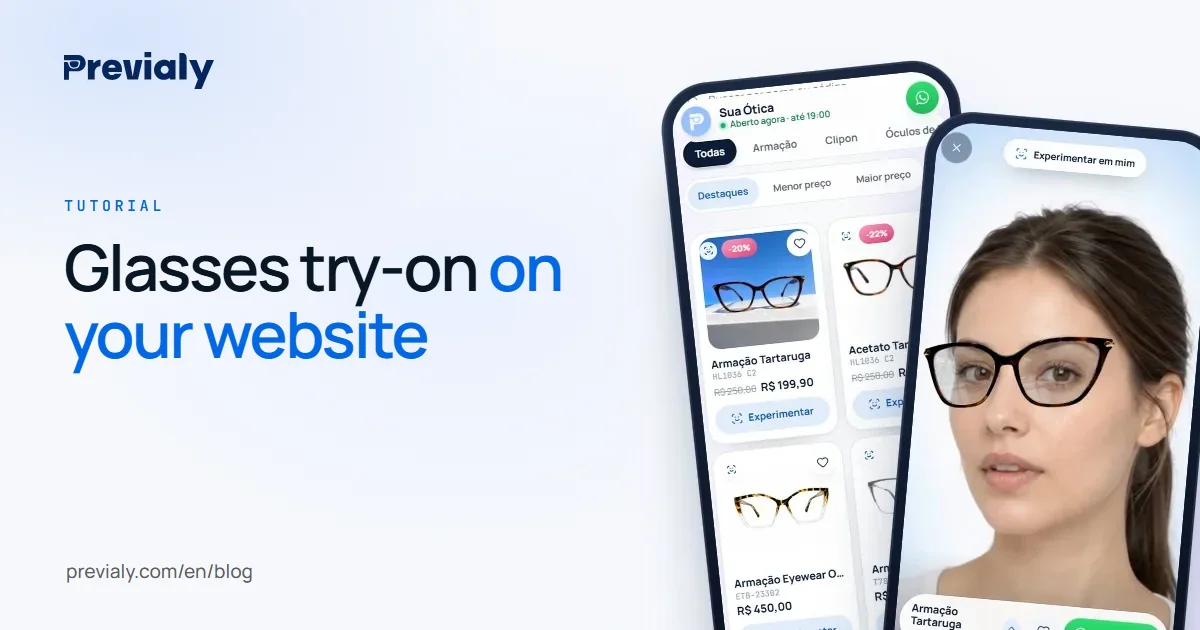
A virtual try-on answers that question on the product page itself. The customer taps the button, the camera opens and they see the glasses on their face before adding to cart.
Live or photo: which try-on to add
There are two kinds of glasses try-on:
- Live: the frame appears on the face in real time, through the camera, like a mirror. The customer turns their head, sees the side view and tries as many models as they like.
- AI photo: the customer sends a photo and waits for a generated image. Every try-on becomes an image, usually with a limit and a cost per image.
For an online store, live has a practical advantage: try-ons are unlimited, so you never worry about how many times a customer tries. See the full comparison in Live virtual try-on or AI photo?.
Step by step to add the try-on to your site
With Previaly it takes three steps and no developer:
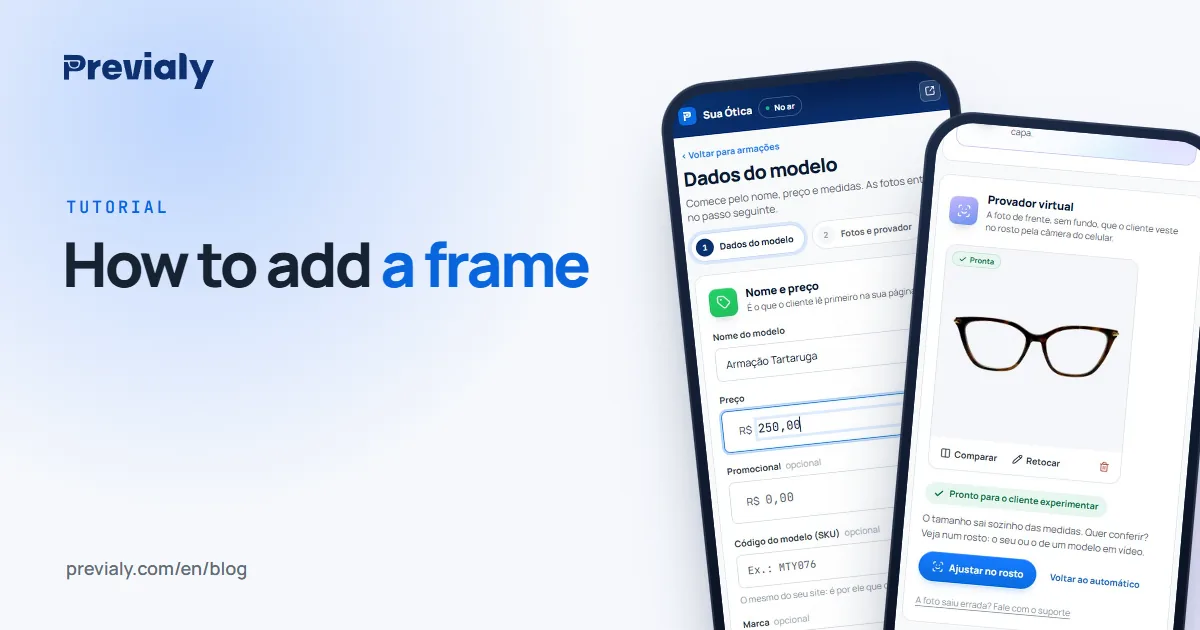
- Add your frames with the same code as your store. On each frame, use the same code (SKU) the product has in your online store as the Model number. That is how the try-on finds the right frame. See how to add frames to the virtual try-on.
- Copy the snippet and paste it into your store theme, once. It lives in Settings › Try-on on your website. The Help shows where to paste it on each platform, or you can send the snippet to whoever runs your site.
- Choose how the try-on shows up. A Try on now button before Buy, or a round icon over the product photo.
Done: every recognized product gets the button. The try-on opens over your site, with the camera, and closes without reloading the page.
Which platforms it works on
It works on Shopify, WooCommerce, Nuvemshop, Loja Integrada, Yampi and any other site where you can paste a code snippet. If your site does not show the product code on the page, you can point to the frame right in the snippet.
What changes (and what does not) in your store
Does not change: cart, checkout, forms and payment. The snippet only adds the button and the try-on window. If it does not recognize the page or the code, it simply does not appear.
Changes:
- Customers try before they buy, live and as many times as they want.
- Glasses appear at the right size, based on the frame measurements (lens, bridge and temple). Learn those numbers in glasses frame size numbers explained.
- The button speaks the page's language: Try on now, Probar ahora or Experimentar agora.
- It even works for visitors from Instagram: if the Instagram browser blocks the camera inside the site, the try-on opens in a new tab and keeps working.
I already have a site: do I need the Previaly storefront?
No. If you already sell through your own store, you can turn on Use only the try-on on my website. Your store page on Previaly leaves Google (your catalog does not show up twice) and anyone opening its address is sent to your site.
Frequently asked questions
How do I add a glasses virtual try-on to my website?
Add your frames with the same code (SKU) as your online store, copy the snippet from the dashboard and paste it into your store theme once. Every recognized product gets the Try on now button.
Do I need a developer to install the try-on?
No. You copy a snippet from the dashboard and paste it into your store theme. The Help shows where to paste it on Shopify, WooCommerce and other platforms.
Can the try-on break my store's checkout?
No. It only adds a button and a window over the page. Cart, forms and payment stay the same.
Is there a limit on try-ons on my site?
No. With a live try-on, try-ons are unlimited and have no cost per try-on. Credits are used only to prepare each frame's model.
The Previaly team
We build the virtual try-on, the online storefront and the AI Studio that optical stores use to sell from the customer's phone. These guides come from what we see every day in the product and in our work with stores.